Void a document sent for digital signing when it went to the wrong people, has incorrect details, or should no longer be signed. Voiding stops all recipients from signing it.
Applies to
Documents with a status of DOCUSIGN SENT TO CLIENT, FUSESIGN SENT TO CLIENT or ADOBE SIGN SENT TO CLIENT.
Void a document
From the Main Toolbar, go to Documents.
You can't undo a void
Once voided, the document can't be signed. To get it signed, prepare and send it again.
- Find the document. Its status must be one of the … SENT TO CLIENT statuses above.

- Select Options beside the document, then Void.
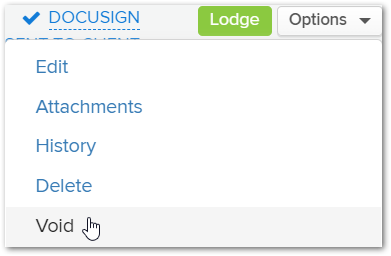
- Enter the reason for voiding.
- Select Void Document.
The document is voided and recipients can no longer sign it.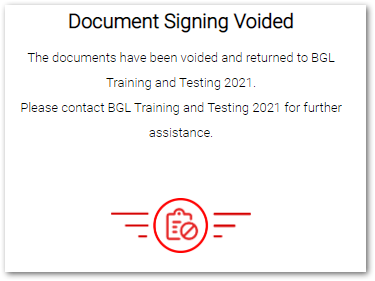
To delete the document afterwards, see How to Delete Documents.
Frequently asked questions
Contact BGL Support and include the trace number of each document you want to void. BGL can void them for you. For FuseSign documents, also send the FuseSign bundle links so BGL can void them in bulk.
Contact BGL Support with the document trace numbers. CAS 360 doesn't pick up a void made directly in the signing provider.
No. Void each document from the Documents screen. For a large number of old documents, contact BGL Support with the trace numbers.
How do I void historical annual reviews sent through FuseSign that were never signed? Void each one from Documents, Options, Void. If voiding gives the error "An error occurred, please try again", contact BGL Support with the trace numbers and FuseSign bundle links and BGL will void them.