What is Customer Due Diligence?
Customer Due Diligence or CDD is the process by which relevant information about the customer is collected and evaluated for any potential risk for the organisation or money laundering/terrorist financing activities.
The Company Compliance screen will help you in complying with the Anti-Money Laundering/Countering Financing of Terrorism and Client Due Diligence (CDD) requirements for your Company.
Navigation
| From the Main Toolbar, go to Company. |  |
| Select the Company from the list. | 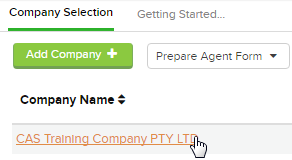 |
| Select Compliance |
As you progress through the CDD Process, CAS 360 will keep you informed about sections that still need to be completed. Completed areas are highlighted in green, while incomplete sections are greyed out.
Click Back and Next to navigate through the sections.
You can always save your progress by clicking Save for Later
The option to download the Compliance Report.
Steps
1. CDD Required
To begin, confirm whether Compliance & Due Diligence is required.
Toggling to the question Compliance & Due Diligence Required? will open further steps.
| Start Date | The date you will be starting the CDD process for the entity |
| Completed Date | The date you completed the CDD process for the entity |
| Compliance Officer |
Begin typing the Compliance Officer name. CAS 360 will begin searching the Global Contact screen for the person. If the Contact has not been previously added to the Global Contact screen, Click |
| Upload Supporting Documents | Upload any supporting documents appropriate for the CDD process for the entity |
 will appear.
2. Nature of Business Relationship
| Nature of Business Relationship | Select from a range of options the business relationship between you and the entity. If required, click + Add Another Relationship to select multiple relationship options |
3. Source of Funds
Toggling to the question Source of Funds required? will open further steps.
| Free Text | Enter any Free Text relevant to the Source of Funds in the text box. |
| Uploading Support Documents | Upload any supporting documents, either by drag and drop or browsing for files. |
Toggling to the question Source of Wealth required? will open further steps.
| Free Text | Enter any Free Text relevant to the Source of Wealth in the text box. |
| Uploading Support Documents | Upload any supporting documents, either by drag and drop or browsing for files. |
4. Individuals
The individuals section will list all Members and Officers of the entity.
Next to each individual, you will be able to instantly identify the individual's shareholding percentage.
Also, hover your cursor over the information icon . Users will be able to instantly see the individual's:
Name
Address
Date of Birth
Place of Birth
Mobile Number
- Company Number
To edit any of these details, select
| Question: Compliance & Due Diligence Required? | Toggle |
5. Risk Assessment
In this section, you can assess and record the level of risk associated with the client.
-
Select Risk Factors Group
Use the first drop-down menu to choose the type of risk you want to assess.
Available groups include:Customer Type
Designated Services
Delivery Channel
Country Risk
-
Select Risk Factor
After choosing a group, a second drop-down will appear with specific risk factors:Customer Type
Is this a new customer/client?
Is there unusual transaction activity?
Are there common recipients/beneficiaries?
Other
Designated Services
Brokering the sale/purchase/transfer of real estate?
Creating/operating/managing legal structures?
Buying/selling of precious metals and stones?
Other
Delivery Channel
Are the interactions via online/phone/face-to-face?
Other
Country Risk
Operating in countries with trade sanctions?
Operating in countries with tax havens/criminal activity?
Operating in countries that have an AML/CTF framework?
Operating in countries with an uncertain geopolitical environment?
Other
-
Add Supporting Details
Once you select a Risk Factor, two additional fields will appear:Free Text Field – Add comments or context for the selected risk factor.
Upload Supporting Documents – Attach evidence or documentation to support your assessment.
Add Another Risk Factor
Click Add Another + to select and record additional risk factors if more than one applies.
Risk Level / CDD Level
| Question: Having reviewed the above risk areas, the overall risk rating for the client is | Rate the entity risk level |
| Level of CDD Required |
Initial/Ongoing customer due diligence This involves identifying the customer, and ensuring it is based on a reliable independent source. The purpose and intended nature of the business relationship or transaction must be assessed and further information obtained where appropriate. Simplified customer due diligence This can be applied when a risk assessment has shown a negligible or low risk of money laundering. The only requirement is to identify the customer and there is no need to verify the customer’s identity. Enhanced customer due diligence Enhanced CDD must be applied when the risk of money laundering is high, such as if the person in question is a politically exposed person. |
6. Notes
Additional findings arising throughout the AML/CDD workflow can be recorded here.
To begin recording additional findings, click
CAS 360 will display the Add Note window.
Each note can have a title and the note content. CAS 360 will also display a time stamp to show when the note was last modified.
Notes can be deleted by selecting beside the note.
Click to add any additional notes.
Click to save note.
7. Risk Review
| Completed By | Select, from a list of your CAS 360 users, the user completing this CDD process |
| Date Completed | Date the CDD process has been completed |
| Next Review Required | Date the next CDD process will be required |
At Step 7 – Risk Review, you have the option to . Clicking this button sends the compliance report to a designated team member using CAS 360’s Document Review feature.
- The reviewer will receive a notification and can either approve or return the document.
- Once approved, the record can be marked as complete.
- Optionally, set the Next Review Required date for future compliance reviews.
This feature is optional but highly recommended for teams with internal compliance workflows or designated compliance officers.
If Compliance & Due Diligence is not required
Leave the 'Compliance & Due Diligence Required?' toggled to no and complete the following fields:
| Next Review Date | Date the next CDD process will be reviewed. |
| Reviewer's note | Enter in the reasoning for why the company/trust does not need to be CDD process to be completed. |
| Upload Supporting Documents | Upload any supporting documents to provide evidence for the reason to not process CDD for the entity. |